

Using AI to write code in Flutter
Not a silver bullet

The subtitle of this article is a reference to one of the most important articles in the history of technology: “No Silver Bullet: Essence and Accidents in Software Engineering” (1986) by Fred Brooks. Written at a time of rapid growth and diversification in the software industry, it concerns methods we might use to tackle growing problems of complexity, and the increase in “accidental” complexity caused by the scale of development projects and the size of the teams needed to undertake them. Over the years, guided by Brooks and others, we got good at this. And then suddenly we have coding by AI. It will be worth revisiting Brooks. Here’s a few observations so far in using AI to help build a Flutter app in Microsoft Visual Studio Code with Github Copilot AI (in the chat panel on the right).
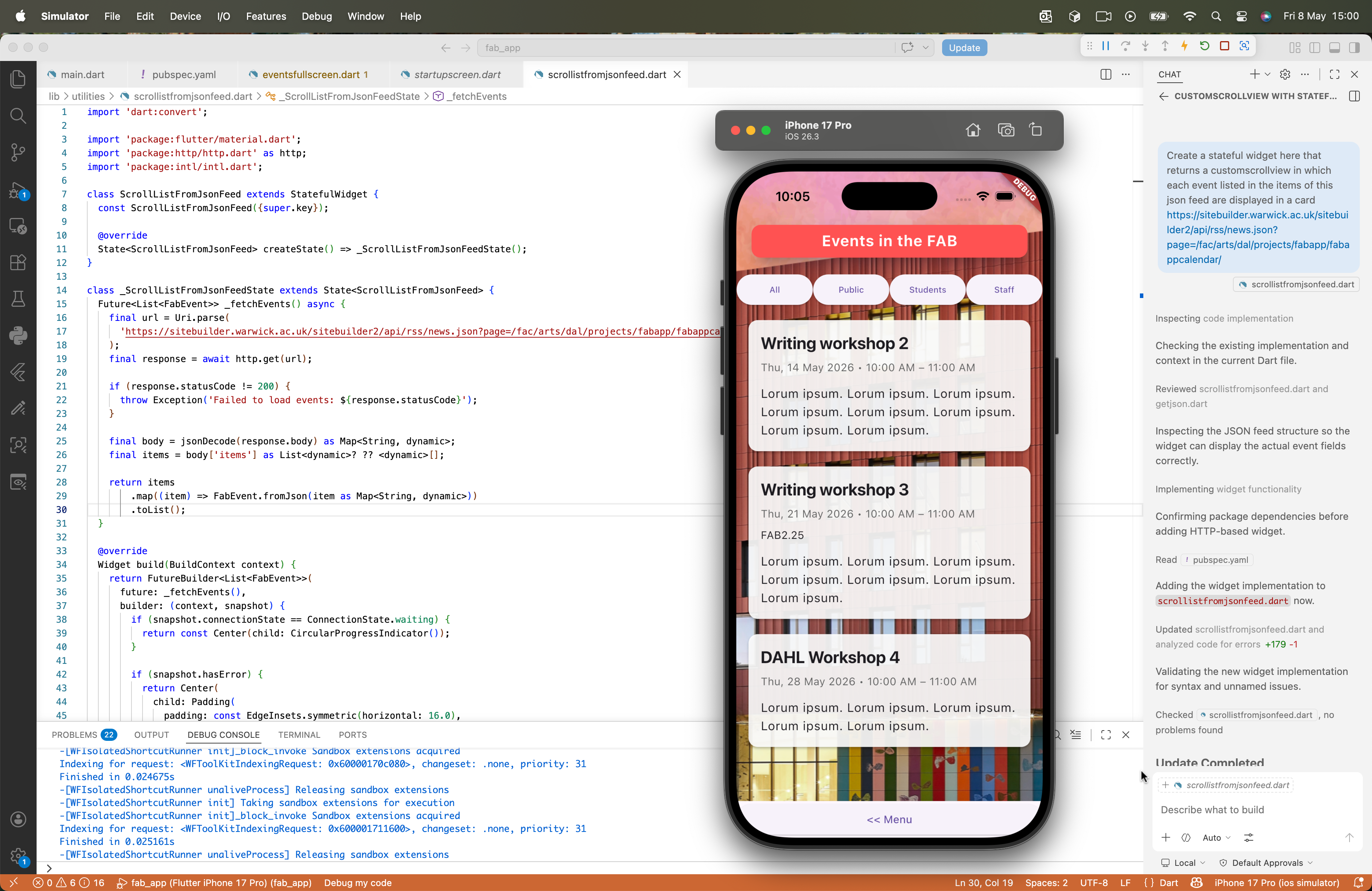
As described in previous articles, I’m currently exploring the Flutter software development kit and tools to develop cross-platform apps (principally aiming for iPhone and Android). Ultimately, my aim is to describe and set up an approach to doing this that can be used by people in the Arts and Humanities without deep comp sci skills. Flutter is quite daunting. And it doesn’t natively lend itself to clean, simple, understandable code built following common design patterns. The way that user interfaces are coded as lists of widgets enclosed within each other, often going down several levels of nesting, is especially problematic. That it is also sometimes necessary to mix program control code in with these descriptions of layout is really annoying. But I can see how to make it easier, and how to write reusable code in ways that reduce the scope for confusion. It is a good tool. It does the job of translating across very different architectures amazingly well.
When coding in Microsoft Visual Studio Code (the default for Flutter) we also have access to the Github Copilot AI tools. That might suggest we can get the AI to do all the work for us. But it’s not that simple. Plus with just a free subscription we can only do a limited number of AI calls a month. I’ve found it to be useful when I can accurately describe what I want its outputs to do. Stating specifically which types of UI and code components (sorry “widgets” in Flutter speak), really helps. If your software design is rationally organised into classes to ensure not too much complexity is built up, then it’s good. It does make mistakes. And sometimes I have found understanding and debugging to be quite a challenge. But that’s as much a result of Flutter’s complexity than the AI. Used interactively, coding step by step helps. But the AI sometimes gets a bit ahead of itself and creates code that is hard to unravel.
In the image above you can see a screen from the app running on an iPhone simulator. I used this prompt:Create a stateful widget here that returns a customscrollview in which each event listed in the items of this json feed are displayed in a card https://sitebuilder.warwick.ac.uk/sitebuilder2/api/rss/news.json?page=/fac/arts/dal/projects/fabapp/fabappcalendar/
The json feed comes from a calendar page on our university web site (a demo calendar with demo events for testing). The AI generated good code as required on the screen that I was working on. It even picked up graphic design details from the rest of the app and used them. I was then able to start adding in features manually, and tweaking the design (manually and using AI prompts). It is OK. And really the only limits are my own design ideas - there are better ways to structure the whole application.
My next experiment will be to provide it with a wireframe model of an interface that I want it to create, and see how well it interprets it. My plan is to use it to create reusable components from those prompts. If it does it in a way that is then human customisable, we can limit its use, not becoming dependent on it. If.